
Your Guide to AU AML Risk Ratings: Build, Run, and Stay Compliant
Set up your firm’s internal Risk Rating profile and carry out compliant assessments for each new client in line with AU’s AML rules.

Introduction
Many AML regulators now require reporting entities to assign a risk rating to every new customer as part of their customer due diligence (CDD) process.
In regions like New Zealand and Australia, this forms part of legislative updates to the Anti-Money Laundering and Counter-Terrorism Financing (AML/CTF) frameworks.
Every new customer must be assigned a risk rating before you begin a business relationship.
This guide walks you through:
-
Setting up your firm’s Risk Profile
-
Running and managing Risk Ratings
-
Staying compliant using Realaml’s tools
Setting up your firm’s Risk Profile
Running and managing Risk Ratings
Staying compliant using Realaml’s tools
🎥 Watch: How to Set Up Risk Ratings in Realaml (3 mins)
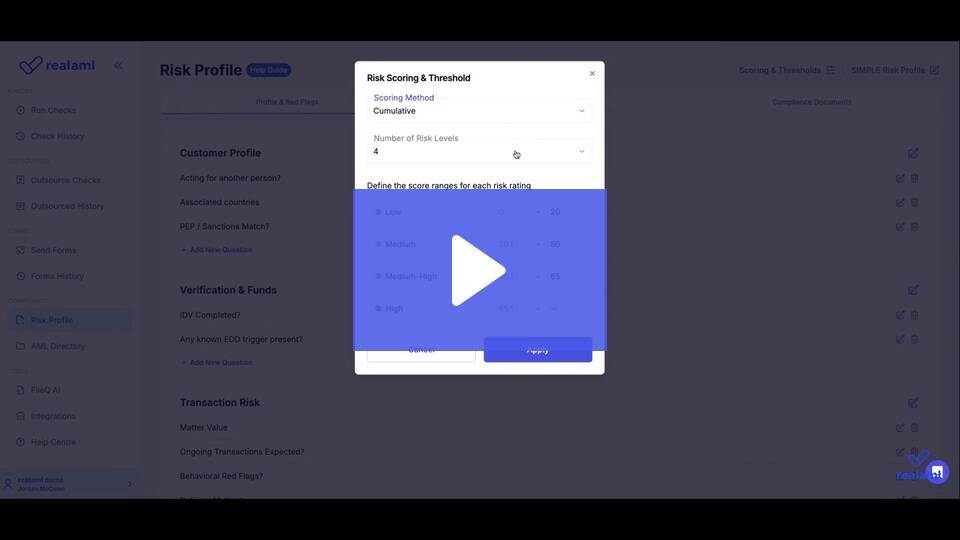
(Video walkthrough showing how to configure your Risk Profile, choose scoring methods, and run a Risk Rating)
Part 1: Set Up Your Firm’s Risk Profile (One-Time Setup)
Your Risk Profile defines how your firm assesses customers and what actions your staff must take. Realaml provides flexible options — from quick-start defaults to full customization — to suit firms of all sizes.
Access it under Compliance → Risk Profile, which includes three main tabs.
1.1 Profile & Red Flags
This tab controls the structure, logic, and depth of your firm’s Risk Rating form.
You can now choose between three risk profile templates to fit your firm’s complexity:
-
🟢 Simple Risk Rating – minimal setup with essential AML questions.
-
🔵 Standard Risk Rating – balanced approach for most compliance programs.
-
🟣 Advanced Risk Rating – full configuration control with extended risk categories.
🟢 Simple Risk Rating – minimal setup with essential AML questions.
🔵 Standard Risk Rating – balanced approach for most compliance programs.
🟣 Advanced Risk Rating – full configuration control with extended risk categories.
The 3-7 Core Sections
Each profile type includes three to seven fixed sections that can be reordered or removed, for example:
-
Customer Type
-
Customer Engagement & Interaction
-
Identity Verification & Jurisdiction Risk
-
Products and Services
-
Transaction Rationale & Customer Involvement
-
Financial Movement & Red Flags
-
Matter Value
Customer Type
Customer Engagement & Interaction
Identity Verification & Jurisdiction Risk
Products and Services
Transaction Rationale & Customer Involvement
Financial Movement & Red Flags
Matter Value
You can:
-
Rename section titles
-
Add unlimited custom questions
-
Use default answers, internal notes, and High-Risk flags (sets score to 5 automatically)
Rename section titles
Add unlimited custom questions
Use default answers, internal notes, and High-Risk flags (sets score to 5 automatically)
Default Risk Rating Disclaimer
By default, all Risk Ratings include this message:
“The current risk rating is based on the default profile provided by Realaml.”
To remove this disclaimer, your firm must review and confirm its Risk Profile configuration as suitable.
To confirm your Risk Profile:
-
Go to your firm’s Risk Profile page.
-
Click the confirmation banner at the top.
-
Type Confirm in the popup.
-
Click Yes to save.
Go to your firm’s Risk Profile page.
Click the confirmation banner at the top.
Type Confirm in the popup.
Click Yes to save.
Once confirmed, the disclaimer is automatically removed from future reports.
Resetting to Realaml Defaults
Need to start fresh?
Click Reset to Default Risk Profile and type Confirm when prompted.
This will:
-
Erase all custom questions, notes, and settings
-
Restore the out-of-the-box Realaml default
-
Require reconfirmation before the disclaimer is removed again
Erase all custom questions, notes, and settings
Restore the out-of-the-box Realaml default
Require reconfirmation before the disclaimer is removed again
⚠️ Important Compliance Note:
Your Risk Profile must accurately reflect your firm’s risk appetite, policies, and AML/CTF obligations.
Relying solely on the default profile without review may result in non-compliance.
1.2 Recommended Actions
Use this tab to define staff guidance displayed at the end of each Risk Rating.
Tables can't be imported directly. Please insert an image of your table which can be found here.
Risk Level
Example Staff Guidance
High Risk
Perform ECDD including source of funds and senior oversight. Consider whether to proceed.
Medium-High Risk
Perform ECDD and escalate for senior review.
Medium Risk
CDD may be sufficient. Document reasoning and assess need for ECDD.
Low Risk
CDD sufficient. Proceed with onboarding.
1.3 Compliance Documents
Upload internal AML/CTF documents for team access and audit readiness.
This may include:
-
Your AML/CTF programme or policy
-
Risk assessment methodology
-
Onboarding workflows or SOPs
Your AML/CTF programme or policy
Risk assessment methodology
Onboarding workflows or SOPs
These are displayed centrally for compliance visibility and internal training.
Part 2: Configure Scoring & Thresholds
The new Scoring Method & Threshold Options give you full control over how risk is calculated and classified.
2.1 Choose a Scoring Method
Select your preferred method under Scoring Method:
-
Cumulative → Adds all section scores together.
-
Average → Calculates the mean score across all sections.
Cumulative → Adds all section scores together.
Average → Calculates the mean score across all sections.
2.2 Define Risk Levels & Thresholds
You can now choose between 3 to 5 risk levels and customize each threshold range.
Example setup:
Tables can't be imported directly. Please insert an image of your table which can be found here.
Risk Level
Score Range
Low
0 – 20
Low-Medium
20.1 – 35
Medium
35.1 – 50
Medium-High
50.1 – 65
High
65.1 – ∞
These thresholds are editable, so you can tailor scoring sensitivity to your internal risk model.
2.3 One Free Edit Included
Mistakes happen — and Realaml now makes it easy to fix them.
Every Risk Rating setup includes one free edit, allowing you to:
-
Instantly correct configuration errors
-
Maintain full audit transparency
-
Stay compliant without extra cost
Instantly correct configuration errors
Maintain full audit transparency
Stay compliant without extra cost
Subsequent edits are tracked in your compliance log for accountability.
Part 3: Run a Risk Rating for a Customer
Once your Risk Profile and thresholds are configured, your team can start running Risk Ratings on new customers.
3.1 Complete IDV or PEP Check
Before a Risk Rating can be initiated, the customer must complete one of the following:
-
Face IDV
-
Quick IDV
-
FaceMatch
-
PEP Check
Face IDV
Quick IDV
FaceMatch
PEP Check
Realaml automatically imports data such as:
-
PEP and Sanctions results
-
Jurisdictional risk
-
IDV outcome and verification source
PEP and Sanctions results
Jurisdictional risk
IDV outcome and verification source
Once complete, you’ll receive a “Run Risk Rating” link via email, or you can open it directly from the client dashboard.
3.2 Start and Complete the Rating
From the client’s dashboard:
-
Open the Risk Rating tab.
-
Click Start New Risk Rating.
-
Complete each section — Realaml auto-saves progress as you go.
Open the Risk Rating tab.
Click Start New Risk Rating.
Complete each section — Realaml auto-saves progress as you go.
Staff can:
-
Select predefined answers
-
View or adjust defaults
-
Add internal notes for context
Select predefined answers
View or adjust defaults
Add internal notes for context
⚠️ High-Risk Flags:
If a question is tagged “High Risk,” selecting that answer will automatically set the score to 5 (High Risk), even if the average is lower.
3.3 Review the Final Score
Depending on your scoring method (Cumulative or Average), Realaml calculates and categorizes the total:
Tables can't be imported directly. Please insert an image of your table which can be found here.
Average Score
Risk Level
1–2
Low Risk
3
Medium Risk
4
Medium-High Risk
5
High Risk
Staff can override the score (with justification) or restart if necessary.
3.4 Submit and Download
Once submitted:
-
The rating appears in the dashboard
-
It automatically links to the related verification
-
Staff can download either:
-
A standalone PDF, or
-
A combined compliance report
-
The rating appears in the dashboard
It automatically links to the related verification
Staff can download either:
A standalone PDF, or
A standalone PDF, or
A combined compliance report
A combined compliance report
Reuse Risk Ratings
For linked customers (e.g., co-trustees, joint directors), answers can be inherited and edited per individual before submission.
FAQs
Is a Risk Rating required for every new customer?
✅ Yes — this is standard under AML/CTF regimes in NZ, AU, and similar jurisdictions.
Why does my report say “based on the default profile”?
You’re using the Realaml default. Confirm your Risk Profile in settings to remove this.
Can I reset my Risk Profile?
✅ Yes — type Confirm to restore defaults at any time.
Can customers see their Risk Rating?
🚫 No — Risk Ratings are for internal compliance use only.
Can I correct a mistake after saving?
✅ Yes — each setup includes one free edit with a full audit trail.